VMware Workstation 17 Player is a platform for running a single virtual machine on a Windows or Linux PC to deliver managed corporate desktops. Organizations can use Workstation Player to deliver managed corporate desktops, while students and educators use it for learning and training.
N/A
RealVNC Connect
Score7 out of 10
N/A
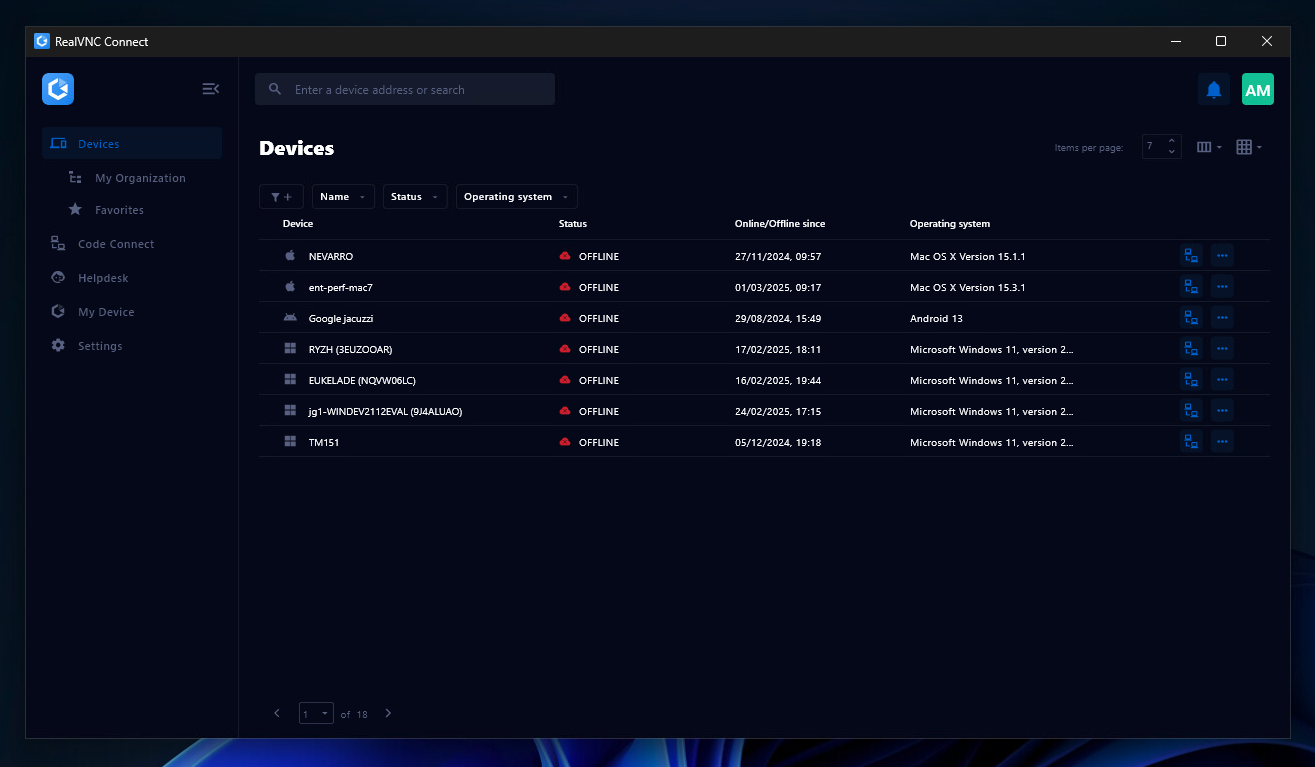
RealVNC® Connect is a secure remote access solution from RealVNC. It can be used to connect to a remote device anywhere in the world to view its desktop in real-time and take control as though sitting in front of it.
$99
per year (one concurrent session)
Pricing
VMware Workstation Player
RealVNC Connect
Editions & Modules
No answers on this topic
Essentials
$8.25
per month (billed annually) per concurrent session
Plus
$16.50
per month (billed annually) per concurrent session (add up to 3)
Premium
$29.75
per month (billed annually) per concurrent session (add up to 5)
Enterprise
Custom Pricing
per year
Enterprise
Custom Pricing
Offerings
Pricing Offerings
VMware Workstation Player
RealVNC Connect
Free Trial
Yes
Yes
Free/Freemium Version
Yes
Yes
Premium Consulting/Integration Services
No
No
Entry-level Setup Fee
No setup fee
No setup fee
Additional Details
—
Plans work on a Per Concurrent Session basis. Each plan gives access to a bundled number of devices, but limits apply to the amount of devices that can be connected at any given time.
The Premium plan includes On-Demand Assist, a useful tool for providing just-in-time remote support to end-users without them needing RealVNC Connect installed on their device.
VMware will work great for the following test scenarios:
Testing windows updates on a system
Testing a new software or a new software version
Creating a sandbox to test options/features of an OS
Creating different VM to test a software on different OS without the need to have physical machines for all of them
You can also use it as a "player" only where you have that static VM that you run from time to time as with my use for SAS University. Whenever you need to use the software, you simply start that VM.
A de minimis incentive was given to thank the reviewer for their time. The incentive was not used to bias or drive a particular response, nor was the incentive contingent on a positive endorsement. More Info
It is very easy to use if the remote device is already set up to receive connections, so if you are setting up devices before deploying them, it is a great tool to have. It is well-suited to use when shadowing users or using it as a teaching tool. There are other products that are better if you are trying to help someone on a one-use basis.
A de minimis incentive was given to thank the reviewer for their time. The incentive was not used to bias or drive a particular response, nor was the incentive contingent on a positive endorsement. More Info
VMware Player supports a wide variety operating systems.
Unity mode makes it easy for the end user to utilize needed legacy applications while maintaining their familiar Host OS desktop. It's seamless to the point where the end user doesn't know they're running applications from a VM.
A de minimis incentive was given to thank the reviewer for their time. The incentive was not used to bias or drive a particular response, nor was the incentive contingent on a positive endorsement. More Info
VNC Connect does an excellent job in remotely connecting to a computer through either your local area network or even another computer on the internet. As long as the VNC Connect services is installed and the client is running in the background.
VNC Connect provides password protection to prevent unauthorized users from attempting to remotely access your computer. There's an option to have a separate password to remotely view vs view & access a computer. You can even add an additional level of security by turning on the feature to require Windows login credentials.
VNC Connect provides an additional set of controls after a remote connection has been established with another computer. You can have special keystrokes like Ctrl+Alt+Del sent as a command sequence to the other computer as well as access more than a single screen when in use at the remote computer location.
A de minimis incentive was given to thank the reviewer for their time. The incentive was not used to bias or drive a particular response, nor was the incentive contingent on a positive endorsement. More Info
A de minimis incentive was given to thank the reviewer for their time. The incentive was not used to bias or drive a particular response, nor was the incentive contingent on a positive endorsement. More Info
A de minimis incentive was given to thank the reviewer for their time. The incentive was not used to bias or drive a particular response, nor was the incentive contingent on a positive endorsement. More Info
I give a rating of 8 because VMware Player has its use cases, for example it requires the host OS to be logged in, and the VMware Player application to be opened and the Guest VM started. Only one VM can run at a time. I'd give a 9/10 to VMware Workstation because you can run shared VMs at startup without logging in or starting the workstation application. and i'd give ESX a 10/10 because ESX is the leader in enterprise visualization.
A de minimis incentive was given to thank the reviewer for their time. The incentive was not used to bias or drive a particular response, nor was the incentive contingent on a positive endorsement. More Info
VNC is a solid product for the price. It simply works and its reliable across different platforms. Some products state they work well in the Mac environment but don't deliver. This one does what it says. Connections are reliable, but of course, this depends on internet connections. The product works well over wireless connections as well. It delivers on what a remote tool should deliver on. My technicians are happy with the product and customers appreciate the ease of use when letting us connect to their systems. Some also appreciate the remote support while they are multi-task.
A de minimis incentive was given to thank the reviewer for their time. The incentive was not used to bias or drive a particular response, nor was the incentive contingent on a positive endorsement. More Info
Great product. Its user-friendly GUI and overall performance are really the biggest strength of this tool. The reason why I don't give a higher note is because of the price. Although it's decent (starting at around $200 for a license), there is a good free alternative in VirtualBox. Not everyone values friendly GUI as something worth paying for. For people that are more tech-savvy, I would recommend looking into VirtualBox as they might actually like the model better (with downloadable add-ons and packages).
A de minimis incentive was given to thank the reviewer for their time. The incentive was not used to bias or drive a particular response, nor was the incentive contingent on a positive endorsement. More Info
It's a niche product and in that niche they try to cater to as many use cases as they can. Other as a TCO aspect i don't see many use cases where you can't use this product as the one tool for all remote session use cases in your company
A de minimis incentive was given to thank the reviewer for their time. The incentive was not used to bias or drive a particular response, nor was the incentive contingent on a positive endorsement. More Info
Integration isn't really relevant here but I see this question more as an OS compatibility for the VM. They state that they support over 200 different OS versions. I honestly have never tried anything else other than Ubuntu and Windows myself but nonetheless, this is impressive. I have not hit any limitation in my use of this software in terms of limitation or conflicts with other software.
A de minimis incentive was given to thank the reviewer for their time. The incentive was not used to bias or drive a particular response, nor was the incentive contingent on a positive endorsement. More Info
VMware support is very knowledgeable on their products, eveything from AirWatch to ESX clusters. VMware is easy to contact, they stay in touch and see the issue through to the end and a final resolution. They keep you up to date on your issue status and don't leave you waiting for answers.
A de minimis incentive was given to thank the reviewer for their time. The incentive was not used to bias or drive a particular response, nor was the incentive contingent on a positive endorsement. More Info
VNC Connect is a reliable product that has been around for a long time. It is reasonably priced and works well in the Mac & PC environment. When you have a small team that supports many users we need tools that we can rely upon and that will get the job done on the first try. Many customers appreciate the quick assistance and can multi-task while our team works on their computer issues remotely. From a customer service point of view, this tool gives us transparency and efficient effectiveness.
A de minimis incentive was given to thank the reviewer for their time. The incentive was not used to bias or drive a particular response, nor was the incentive contingent on a positive endorsement. More Info
The training is very informative, quick and to the point. All of the details one would need are present so the user doesn't have to go searching for additional information just to use the application. The layout of the training was also neat and concise, some of the other training sessions for other companies I've done in the past were confusing and not well thought out, this one is much more superior
Installing the application was easily completed on the twenty computers that needed VMware Player. Once those 20 users were configured we copied our virtual machine template to the 20 users and turned on their newly provisioned virtual machines. We then configured unity mode so the user could easily work from within the virtual machine from their host desktop.
A de minimis incentive was given to thank the reviewer for their time. The incentive was not used to bias or drive a particular response, nor was the incentive contingent on a positive endorsement. More Info
A de minimis incentive was given to thank the reviewer for their time. The incentive was not used to bias or drive a particular response, nor was the incentive contingent on a positive endorsement. More Info
A de minimis incentive was given to thank the reviewer for their time. The incentive was not used to bias or drive a particular response, nor was the incentive contingent on a positive endorsement. More Info
VNC is light and sleek with the quick setup, was impressed with the quick setup despite poor Internet connection outdoor. TeamViewer is good, but the pricing is not as good as VNC. Both do the basic job, but VNC still outperform TeamViewer in terms of performance and ease of use.
A de minimis incentive was given to thank the reviewer for their time. The incentive was not used to bias or drive a particular response, nor was the incentive contingent on a positive endorsement. More Info
I have just used the software for about 1 month and so far so god. I am saving time whenever I can access my client's computers from my desk as opposed to having to leave my office to go to their offices. Saves me time and the client money.
A de minimis incentive was given to thank the reviewer for their time. The incentive was not used to bias or drive a particular response, nor was the incentive contingent on a positive endorsement. More Info