UiPath Task Capture vs. Weet

Overview
ProductRatingMost Used ByProduct SummaryStarting Price
UiPath Task Capture
Score 8.0 out of 10
N/A
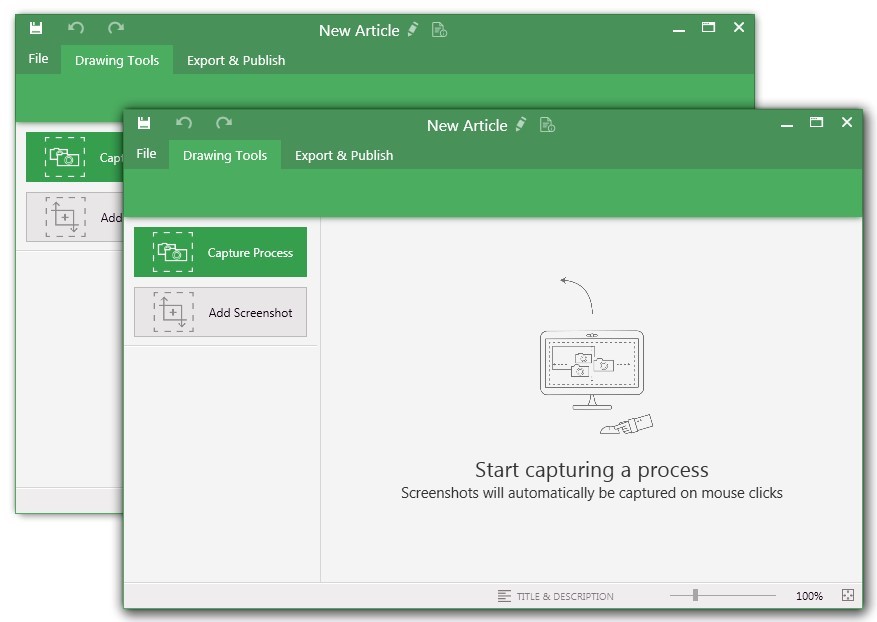
UiPath Task Capture (formerly StepShot, acquired October 2019) is a tool designed for quick and easy step-by-step documentation. During a recording mode, the software creates a separate screenshot on every click, groups them into a manual with automatically added metadata. Users can annotate captured images and structure documents in the way they want them to look.N/A
Weet
Score 0.0 out of 10
N/A
Weet enables users to record and share quick videos of a screen, or a camera. It can be used to record video training, tutorials, and demos.
$96
per year per creator
Pricing
UiPath Task CaptureWeet
Editions & Modules
No answers on this topic
Business
$96
per year per creator
Enterprise
Custom
Offerings
Pricing Offerings
UiPath Task CaptureWeet
Free Trial
YesNo
Free/Freemium Version
YesYes
Premium Consulting/Integration Services
NoNo
Entry-level Setup FeeNo setup feeNo setup fee
Additional DetailsWe have some discounts available all the time depending on the amount of ordered licenses.
More Pricing Information
Community Pulse
UiPath Task CaptureWeet
User Ratings
UiPath Task CaptureWeet
Likelihood to Recommend
8.0
(0 ratings)
-
(0 ratings)
Support Rating
10.0
(0 ratings)
-
(0 ratings)
User Testimonials
UiPath Task CaptureWeet
Likelihood to Recommend
StepShot is excellent for organizations of any size. Whether you're a solo-entrepreneur who has contractors occasionally help out or a Fortune 500 company, StepShot can help. It offers options to export to Word, PDF, PowerPoint, HTML, WordPress, and even Confluence. With so many output options available, StepShot is excellent for any organization, no matter how simple or complex their document structure is.
Read full review
No answers on this topic
Pros
  • The annotations options are fantastic. You can adjust exactly where you want your mouse cursor to show up (if at all) and can create all images for step-by-step
  • It has a really nice interface, simple to use.
  • It's customizable - you can choose full screen, active area, etc.
Read full review
No answers on this topic
Cons
  • It will be good if it is available in web instead of installing on the local device
  • Some little changes can be done in the interface to be updated as per trend in market
  • Can make the login procedure simple so that it will be good for the new users
Read full review
No answers on this topic
Support Rating
I have only run into an issue once, which I believe was due to a newly released feature (cloud storage). I was running into issues with the functionality on my Mac. The team was incredibly helpful in both troubleshooting the issue by jumping on screen sharing sessions, as well as providing multiple releases for me to test to fix the problem!
Read full review
No answers on this topic
Alternatives Considered
While StepShot provides us with more options for modifying our screen recording and adding helper information for our audience, iSpring is a little more accessible since you can connect directly to YouTube for videos. Since most of our work doesn't require a video tutorial, we are happy with StepShot, but iSpring, like many other screen recorders, is a little more "well rounded" when it comes being able to connect our guides with our intended audience.
Read full review
No answers on this topic
Return on Investment
  • This has saved us MANY HOURS in either walking clients through processes in person or having to create a one-off guide through taking screenshots and creating our own documents with the screenshots hand placed.
  • Client satisfaction is high when they receive these guides. It is documentation that they can refer to at anytime that is personalized to their use or individual needs.
Read full review
No answers on this topic
ScreenShots

UiPath Task Capture Screenshots

Screenshot of You may record the needed area of take a separate screenshotScreenshot of Open menu (1) to be able to save this document to another location, share or publish it somewhere on your computer or remote service.
To create your documentation, use recording buttons (2) (discussed in "Recording" article later). All recorded steps and single screenshots are displayed in the outline panel (3). To group steps into sections, right click on empty space inside the outline panel and click on "Add section" option.
Annotate the selected step image (5) with drawings (7). Then update step title and description (6) to tell the user what he/she needs to do.Screenshot of Create manuals that contain guidesScreenshot of Exporting options. Choose the template (1) and set export settings such as quality and image size (2). Then export the document (3) to a specific location. 
Export settings are the same for all export formats.