LaunchBrightly vs. UiPath Task Capture

Overview
ProductRatingMost Used ByProduct SummaryStarting Price
LaunchBrightly
Score 0.0 out of 10
N/A
LaunchBrightly’s screenshot automation platform enables users to set up simple automation recipes to auto-generate the latest screenshots of a product and, automatically and continuously, update the screenshots in a help documentation as the product changes.
$0
100 screenshots generated
UiPath Task Capture
Score 8.0 out of 10
N/A
UiPath Task Capture (formerly StepShot, acquired October 2019) is a tool designed for quick and easy step-by-step documentation. During a recording mode, the software creates a separate screenshot on every click, groups them into a manual with automatically added metadata. Users can annotate captured images and structure documents in the way they want them to look.N/A
Pricing
LaunchBrightlyUiPath Task Capture
Editions & Modules
Free
$0
100 screenshots generated
Pro
$275
per month 500 Screenshots generated
Business
$599
per month 2000 Screenshots generated
No answers on this topic
Offerings
Pricing Offerings
LaunchBrightlyUiPath Task Capture
Free Trial
YesYes
Free/Freemium Version
YesYes
Premium Consulting/Integration Services
NoNo
Entry-level Setup FeeOptionalNo setup fee
Additional Details20% discount for annual pricing.We have some discounts available all the time depending on the amount of ordered licenses.
More Pricing Information
Community Pulse
LaunchBrightlyUiPath Task Capture
Best Alternatives
LaunchBrightlyUiPath Task Capture
Small Businesses
Sendspark
Sendspark
Score 10.0 out of 10
Sendspark
Sendspark
Score 10.0 out of 10
Medium-sized Companies
Snagit
Snagit
Score 9.3 out of 10
Snagit
Snagit
Score 9.3 out of 10
Enterprises
Snagit
Snagit
Score 9.3 out of 10
Snagit
Snagit
Score 9.3 out of 10
All AlternativesView all alternativesView all alternatives
User Ratings
LaunchBrightlyUiPath Task Capture
Likelihood to Recommend
-
(0 ratings)
8.0
(0 ratings)
Support Rating
-
(0 ratings)
10.0
(0 ratings)
User Testimonials
LaunchBrightlyUiPath Task Capture
Likelihood to Recommend
No answers on this topic
StepShot is excellent for organizations of any size. Whether you're a solo-entrepreneur who has contractors occasionally help out or a Fortune 500 company, StepShot can help. It offers options to export to Word, PDF, PowerPoint, HTML, WordPress, and even Confluence. With so many output options available, StepShot is excellent for any organization, no matter how simple or complex their document structure is.
Read full review
Pros
No answers on this topic
  • The annotations options are fantastic. You can adjust exactly where you want your mouse cursor to show up (if at all) and can create all images for step-by-step
  • It has a really nice interface, simple to use.
  • It's customizable - you can choose full screen, active area, etc.
Read full review
Cons
No answers on this topic
  • It will be good if it is available in web instead of installing on the local device
  • Some little changes can be done in the interface to be updated as per trend in market
  • Can make the login procedure simple so that it will be good for the new users
Read full review
Support Rating
No answers on this topic
I have only run into an issue once, which I believe was due to a newly released feature (cloud storage). I was running into issues with the functionality on my Mac. The team was incredibly helpful in both troubleshooting the issue by jumping on screen sharing sessions, as well as providing multiple releases for me to test to fix the problem!
Read full review
Alternatives Considered
No answers on this topic
While StepShot provides us with more options for modifying our screen recording and adding helper information for our audience, iSpring is a little more accessible since you can connect directly to YouTube for videos. Since most of our work doesn't require a video tutorial, we are happy with StepShot, but iSpring, like many other screen recorders, is a little more "well rounded" when it comes being able to connect our guides with our intended audience.
Read full review
Return on Investment
No answers on this topic
  • This has saved us MANY HOURS in either walking clients through processes in person or having to create a one-off guide through taking screenshots and creating our own documents with the screenshots hand placed.
  • Client satisfaction is high when they receive these guides. It is documentation that they can refer to at anytime that is personalized to their use or individual needs.
Read full review
ScreenShots

LaunchBrightly Screenshots

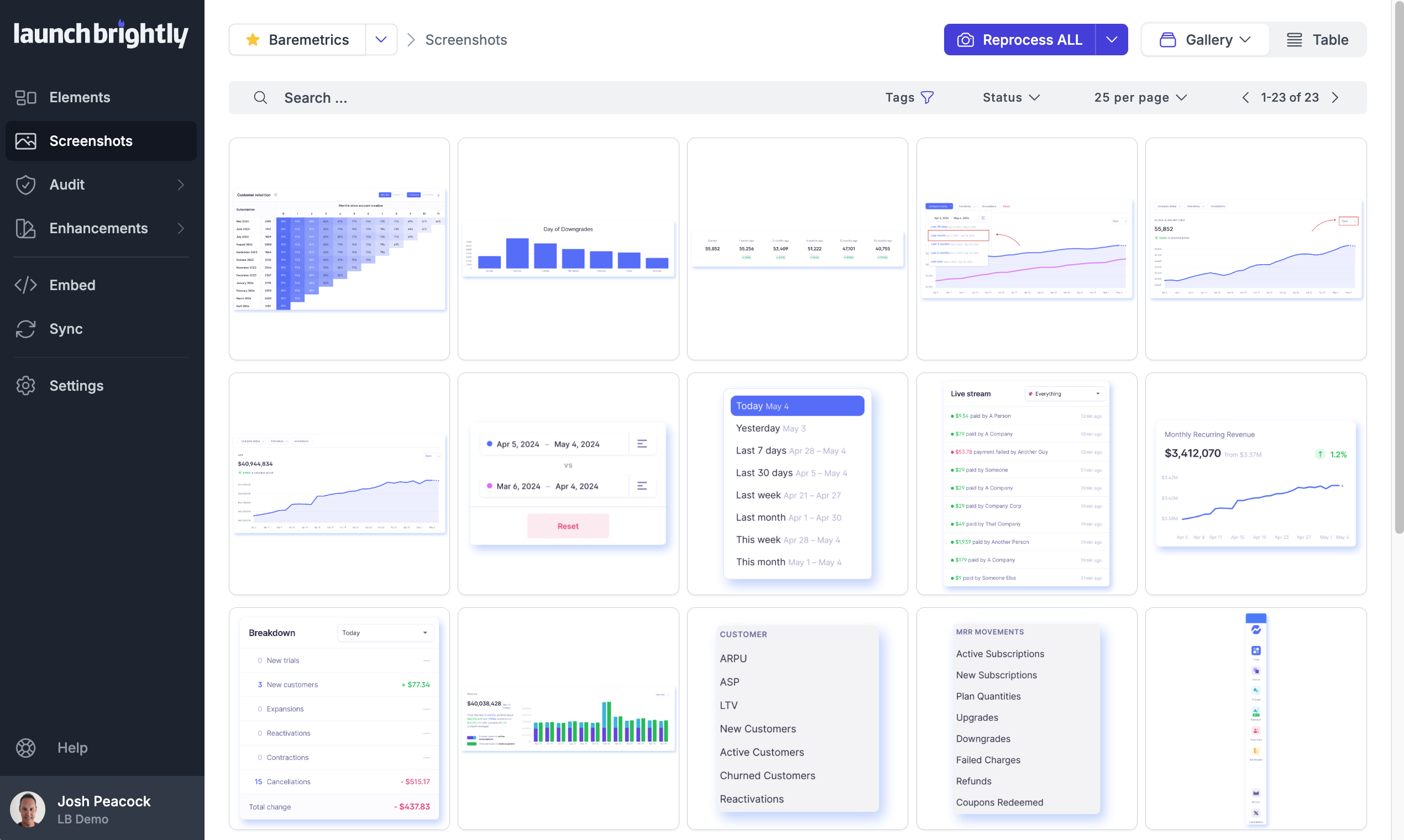
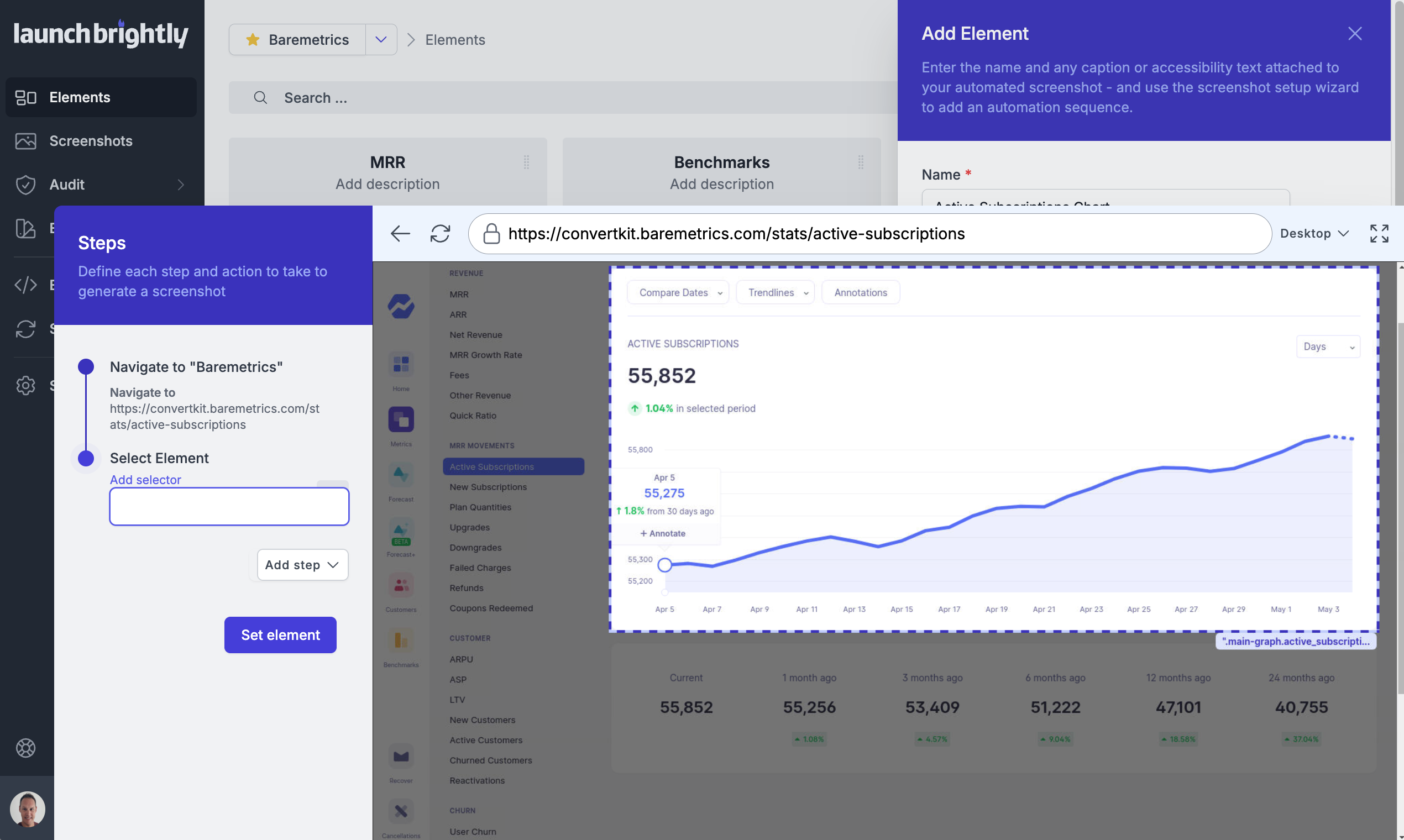
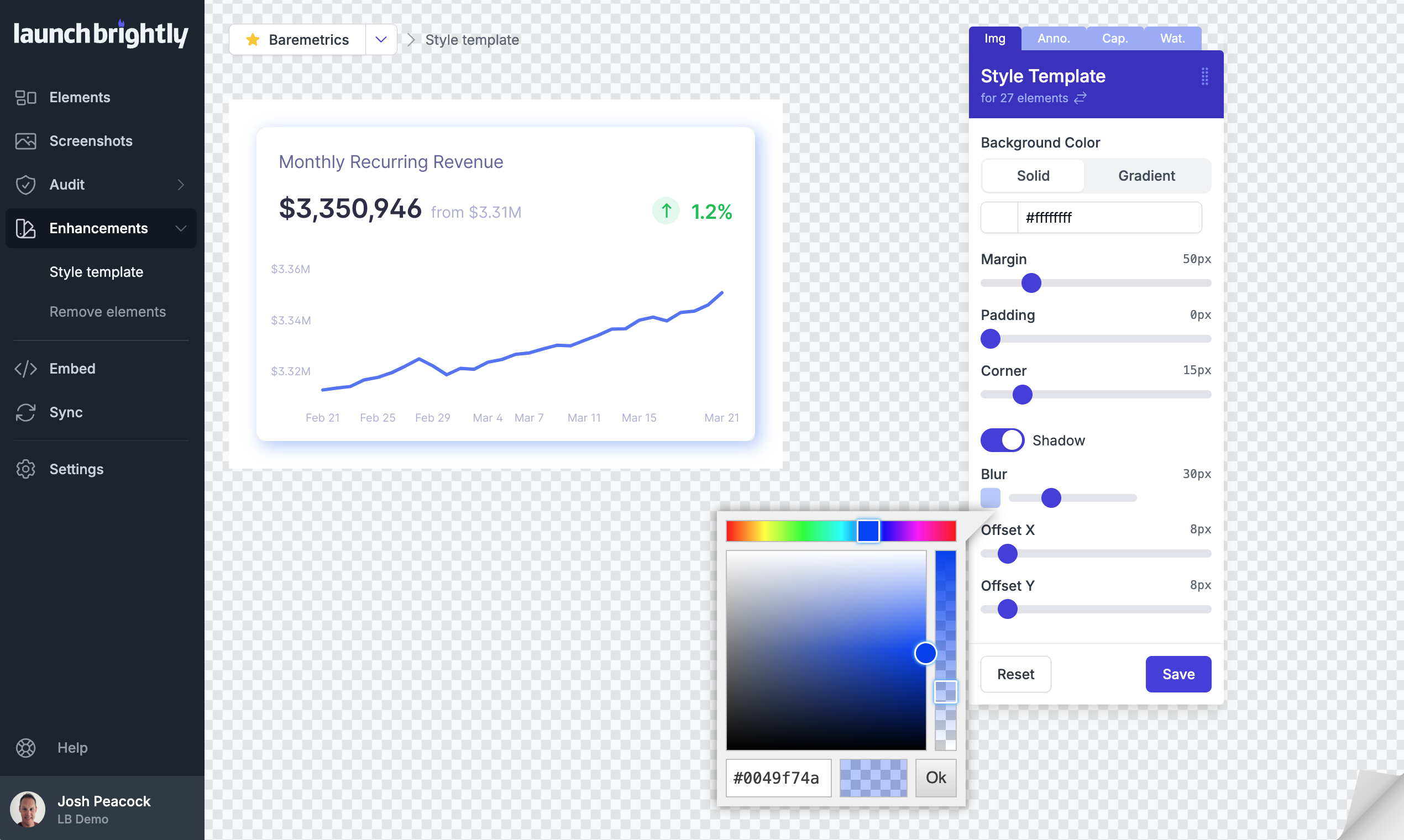
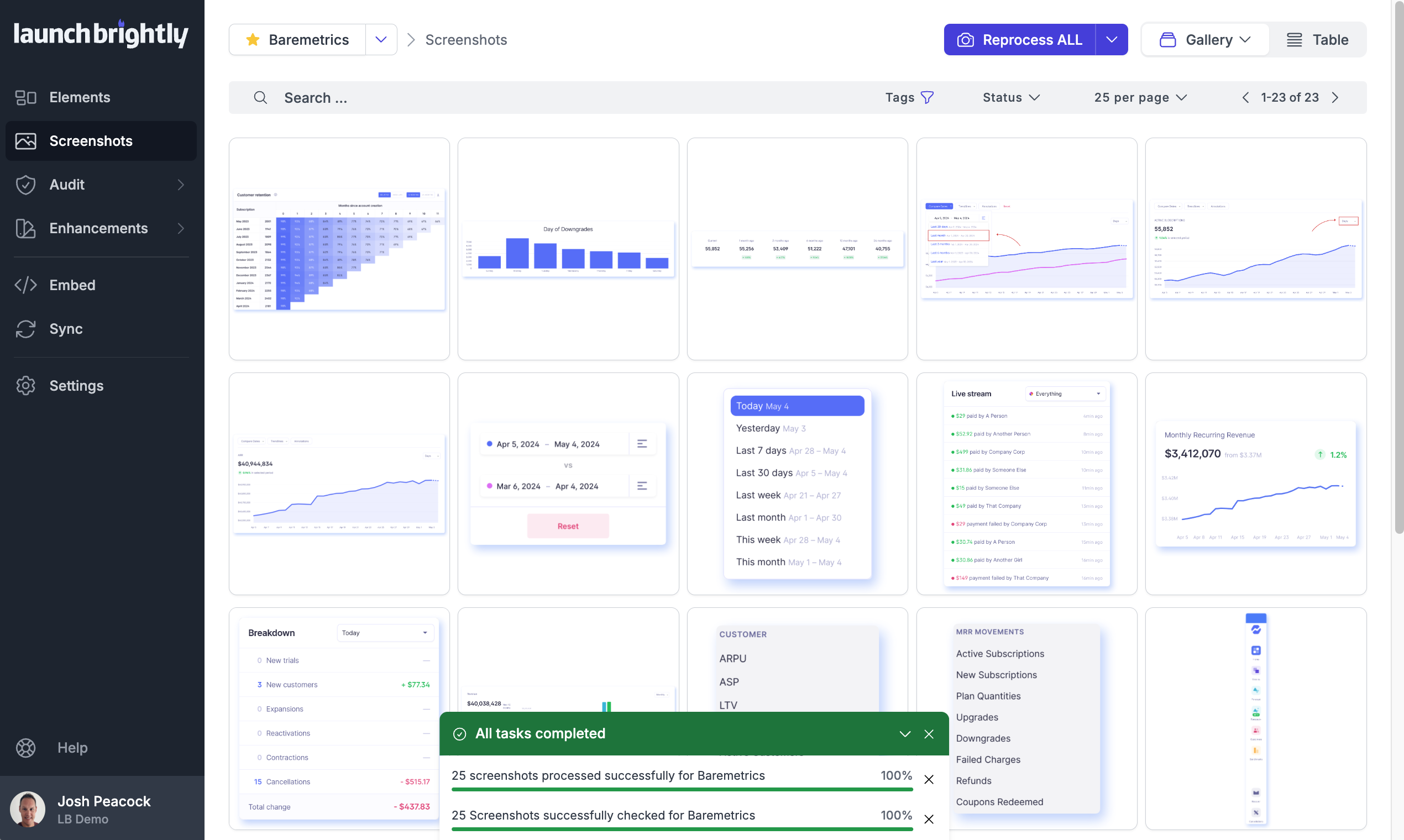
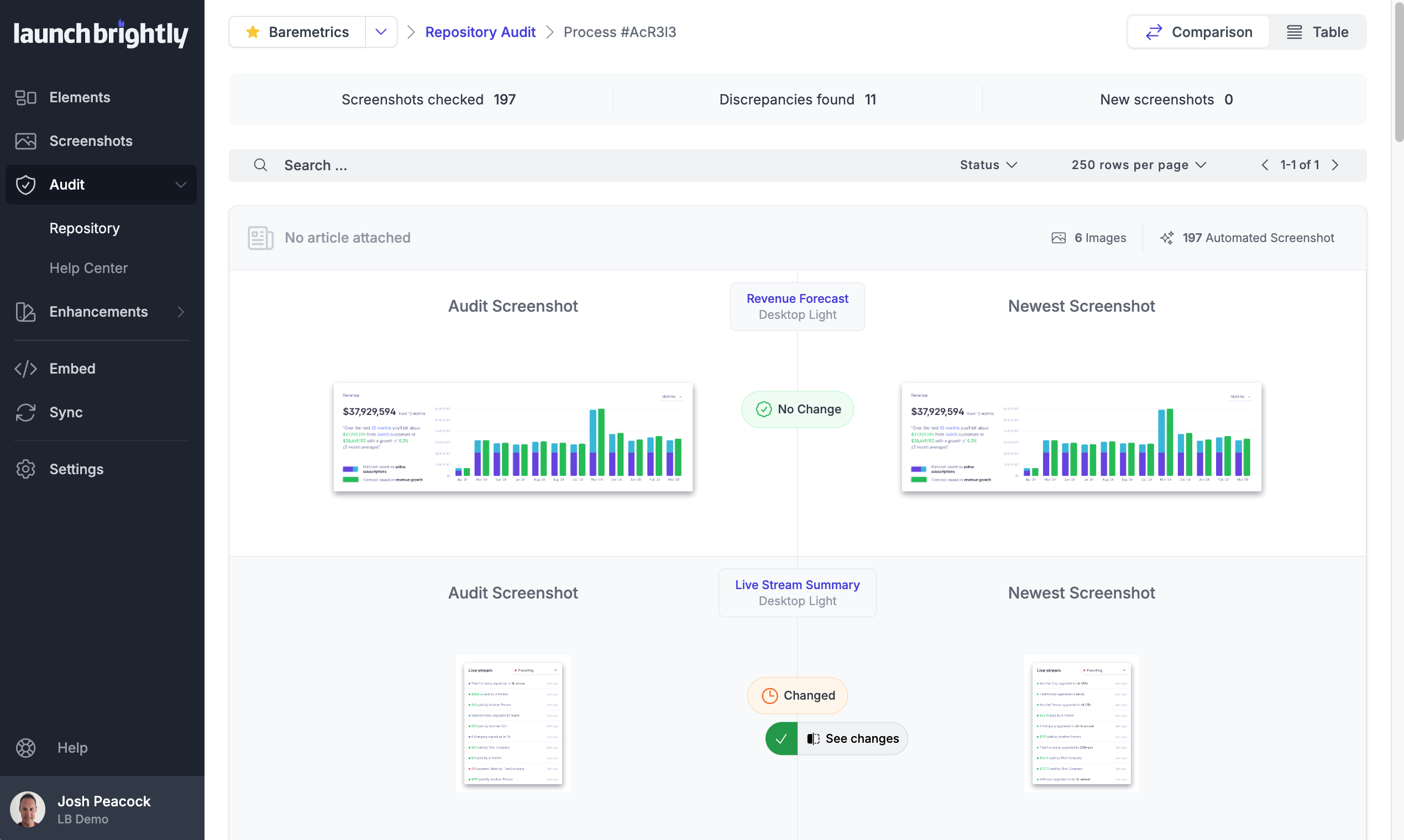
Screenshot of A gallery view of all automated screenshotsScreenshot of the Screenshot Recipe Builder is used to meticulously record the steps to capture an ideal screenshotScreenshot of the interface to style screenshots, annotations, and captions to match the product's brand identity, with reprocessing of changesScreenshot of the auto-reprocessing feature, used to automatically generate new screenshots reflecting the latest version of a  product, and ensure it always has the freshest screeshotsScreenshot of the Screenshot Audit, which is used to compare an up-to-the minute screenshot against previously generated screenshots to quickly identify what, if any, changes have occurred, with the option to accept or reject those changes.Screenshot of where each generated screenshot is preserved to history, providing a chronological screenshot archive tracking how the product changes over time

UiPath Task Capture Screenshots

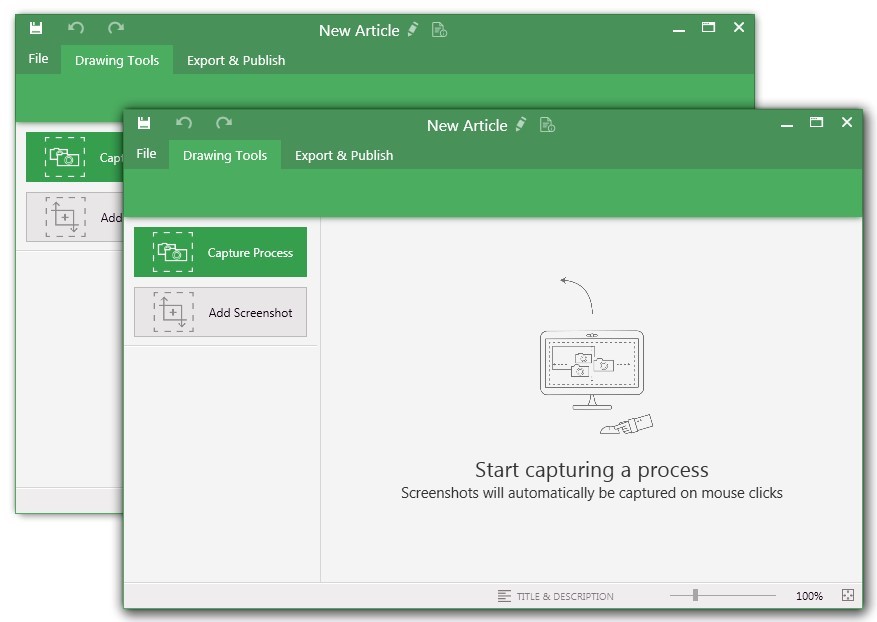
Screenshot of You may record the needed area of take a separate screenshotScreenshot of Open menu (1) to be able to save this document to another location, share or publish it somewhere on your computer or remote service.
To create your documentation, use recording buttons (2) (discussed in "Recording" article later). All recorded steps and single screenshots are displayed in the outline panel (3). To group steps into sections, right click on empty space inside the outline panel and click on "Add section" option.
Annotate the selected step image (5) with drawings (7). Then update step title and description (6) to tell the user what he/she needs to do.Screenshot of Create manuals that contain guidesScreenshot of Exporting options. Choose the template (1) and set export settings such as quality and image size (2). Then export the document (3) to a specific location. 
Export settings are the same for all export formats.