Camtasia is a video editor and screen recorder. Camtasia offers a range of plans designed to meet varying video creation needs, and enables users to produce professional-looking videos. Its features include Camtasia Rev, script generation, text-to-speech, translations, and avatar videos, to streamline the video creation process. The editions available are Free, Essentials, Create, or the Pro plan.
$179.88
per year per user
UiPath Task Capture
Score8 out of 10
N/A
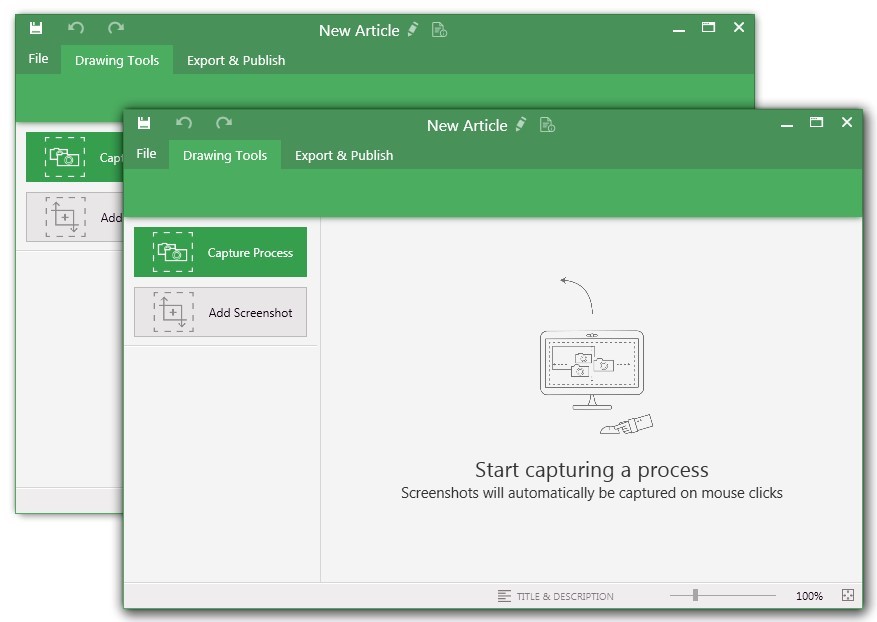
UiPath Task Capture (formerly StepShot, acquired October 2019) is a tool designed for quick and easy step-by-step documentation. During a recording mode, the software creates a separate screenshot on every click, groups them into a manual with automatically added metadata. Users can annotate captured images and structure documents in the way they want them to look.
N/A
Pricing
Camtasia
UiPath Task Capture
Editions & Modules
Camtasia Business
$198
per year per seat
No answers on this topic
Offerings
Pricing Offerings
Camtasia
UiPath Task Capture
Free Trial
Yes
Yes
Free/Freemium Version
Yes
Yes
Premium Consulting/Integration Services
No
Yes
Entry-level Setup Fee
No setup fee
No setup fee
Additional Details
*Discounts available for purchases supporting a large volume of users.
We have some discounts available all the time depending on the amount of ordered licenses.
Camtasia is so easy to use that I recommend it over Adobe Premiere, Captivate, Storyline, and other tools. The only problem is the price. Due to the fact that I purchased this for education purposes, and educational prices have gone up exponentially, it has been difficult even at $179 to upgrade, as an educator and the organization is not always willing to reimburse the purchase, it would have been more economical. It was less than $100 (Black Friday) when I bought our updated version in 2019. Camtasia profile accounts aren't the best setup, however. My profile account does not reflect when I was a user or show past invoices, and I wanted to see how long ago I was a user.
A de minimis incentive was given to thank the reviewer for their time. The incentive was not used to bias or drive a particular response, nor was the incentive contingent on a positive endorsement. More Info
StepShot is perfect for showing your audience how they are supposed to navigate a new system you have implemented. You can take them from a login screen all the way through any technical process you want them to follow. The product is not ideal, however, for documenting a process that does not have tangible steps. For example, a process we have created includes some reflective thinking about alignment or outcomes in order to work, this can be articulated in the text area of the screen captures but doesn't really capture our message.
A de minimis incentive was given to thank the reviewer for their time. The incentive was not used to bias or drive a particular response, nor was the incentive contingent on a positive endorsement. More Info
A de minimis incentive was given to thank the reviewer for their time. The incentive was not used to bias or drive a particular response, nor was the incentive contingent on a positive endorsement. More Info
A de minimis incentive was given to thank the reviewer for their time. The incentive was not used to bias or drive a particular response, nor was the incentive contingent on a positive endorsement. More Info
USB Microphones can sometimes cause a problem if they become accidentally unplugged during a recording session. This can corrupt some of the files that the Camtasia Recorder application uses to capture directly to .avi mode.
You'll sometimes get a message when you next try to record that .avi mode isn't available and the only way to fix this is by completely uninstalling and reinstalling Camtasia (with a reboot in the middle of these two actions).
This bug only manifested after Camtasia 8 was released, but still seems to cause an issue right up to and including Camtasia 2021.
I'd like to see more standard Annotation options. The existing ones are pretty good, but variety is a little lacking.
More 'Behaviours' would also be really welcome as these are a great feature and make Callouts a bit more interesting and lively. I've not seen any new Behaviours over the past few versions (since Camtasia 2018).
A de minimis incentive was given to thank the reviewer for their time. The incentive was not used to bias or drive a particular response, nor was the incentive contingent on a positive endorsement. TR verified that a representative sample of customers was invited. More Info
The "export & publish" button is kind of tiny and tucked away. It should be more prominent. After not using it for a couple weeks, I always forget where it is.
Updates aren't as frequent. Which is fine, since I haven't come across many bugs, it would just be cool to see some added features/functionality a bit more often.
The blur looks fine in the preview mode, but when exported, it's not the best.
A de minimis incentive was given to thank the reviewer for their time. The incentive was not used to bias or drive a particular response, nor was the incentive contingent on a positive endorsement. More Info
Each release of Camtasia has added just enough functionality to justify the upgrade to the new version. I like that Camtasia is not a subscription-based product as we have more flexibility and control over our spend on the product. We can also purchase support packages that include the next version when released.
A de minimis incentive was given to thank the reviewer for their time. The incentive was not used to bias or drive a particular response, nor was the incentive contingent on a positive endorsement. More Info
I haven't used another video recording and editing tools that is as comprehensive and straight-forward as Camtasia. Typically, if you want a user-friendly video editing tools for novice users, you have to compromise on features. Camtasia solves this problem by offering extensive editing features in a simplistic, user-friendly environment. Highly recommend
A de minimis incentive was given to thank the reviewer for their time. The incentive was not used to bias or drive a particular response, nor was the incentive contingent on a positive endorsement. More Info
With the latest version (Camtasia 2020), I actually had problems with an Imac with HighSierra, but from the first moment they answered and guided me to solve the problem, even before making the purchase (with some doubts I had). And they have support in English and Spanish, I really liked that.
I have only run into an issue once, which I believe was due to a newly released feature (cloud storage). I was running into issues with the functionality on my Mac. The team was incredibly helpful in both troubleshooting the issue by jumping on screen sharing sessions, as well as providing multiple releases for me to test to fix the problem!
A de minimis incentive was given to thank the reviewer for their time. The incentive was not used to bias or drive a particular response, nor was the incentive contingent on a positive endorsement. More Info
I've tried several freeware recorders, too. If all you want to do is literally record your screen, and nothing else, you don't need Camtasia. There are literally dozens of apps that will do that. If you want an app that will record your screen while capturing mouse clicks, follow you, record your voice while you capture, and annotate when you're done, Camtasia has no equal. Plus, it doesn't stop there. You can add professional intros and outros (many already created to choose from), lower thirds, etc., leading to videos with very high production value. This is THE program to buy if you want to produce training videos of very high quality.
A de minimis incentive was given to thank the reviewer for their time. The incentive was not used to bias or drive a particular response, nor was the incentive contingent on a positive endorsement. More Info
A de minimis incentive was given to thank the reviewer for their time. The incentive was not used to bias or drive a particular response, nor was the incentive contingent on a positive endorsement. More Info
A de minimis incentive was given to thank the reviewer for their time. The incentive was not used to bias or drive a particular response, nor was the incentive contingent on a positive endorsement. More Info
This has saved us MANY HOURS in either walking clients through processes in person or having to create a one-off guide through taking screenshots and creating our own documents with the screenshots hand placed.
Client satisfaction is high when they receive these guides. It is documentation that they can refer to at anytime that is personalized to their use or individual needs.
A de minimis incentive was given to thank the reviewer for their time. The incentive was not used to bias or drive a particular response, nor was the incentive contingent on a positive endorsement. More Info